

For whoever calls your leads
Book a lead by hand.
A lead agrees a time on the phone or by message? Put it straight in your CRM calendar. Two minutes, on a computer.
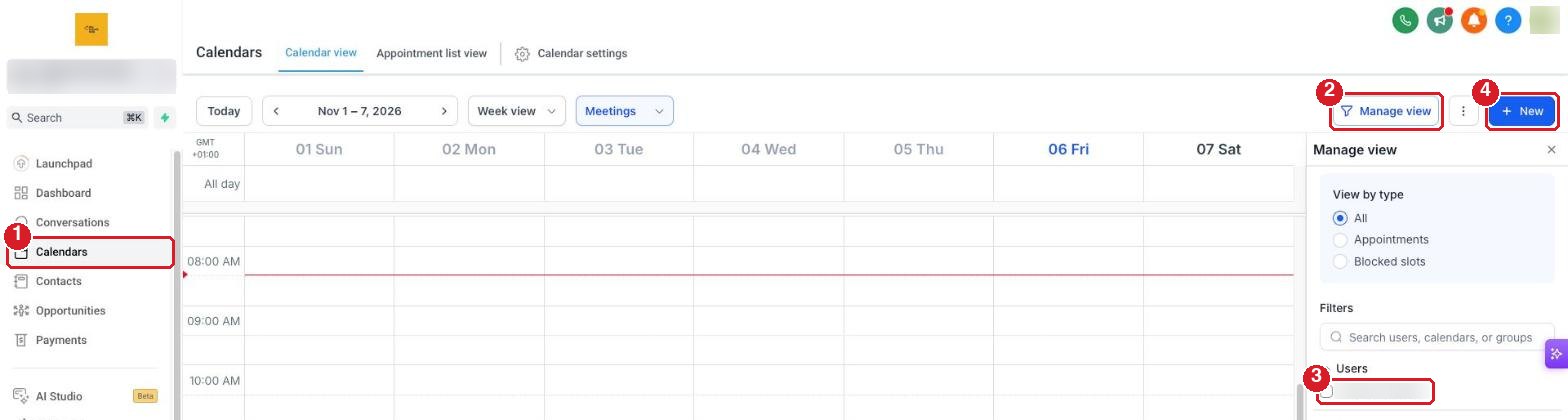
1Open your calendar
Sign in to your CRM.
- Calendars (left menu)
- Manage view
- Tick your name, so your bookings show. You only do this once.
- New
2Pick the lead
- Calendar: your booking calendar. It is usually picked for you.
- Type the lead's name, email or phone
- Click them in the list
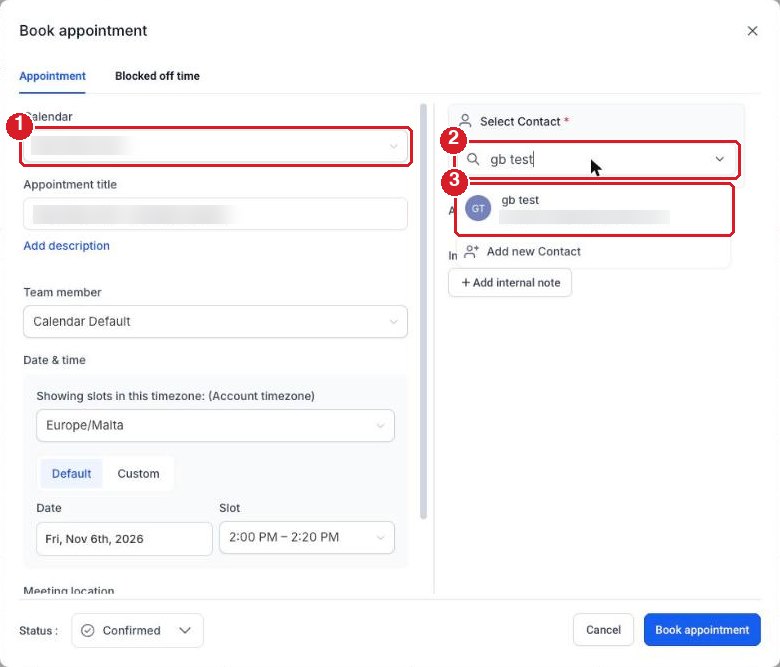
Not in your CRM yet? Click Add new Contact and enter their name and email.
3Pick the time
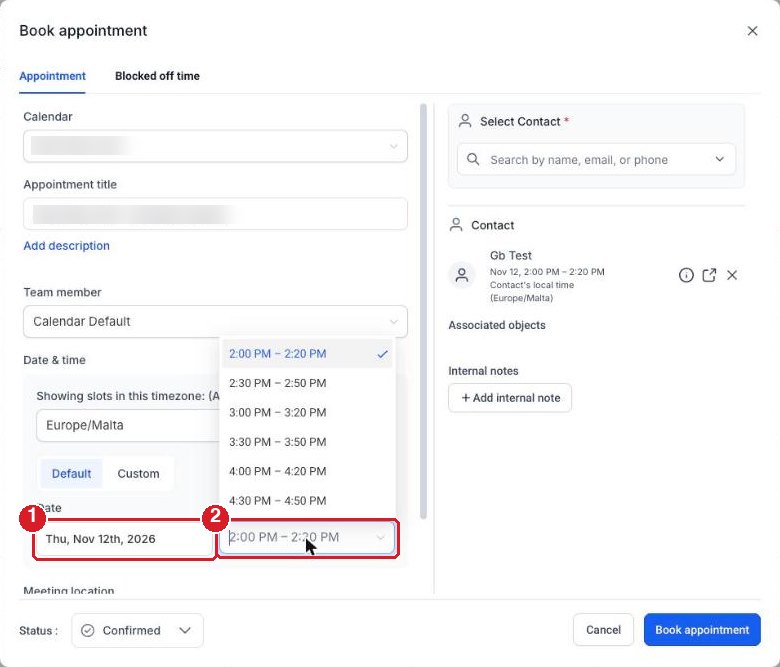
- Date
- Slot: the times you have open
4Save it
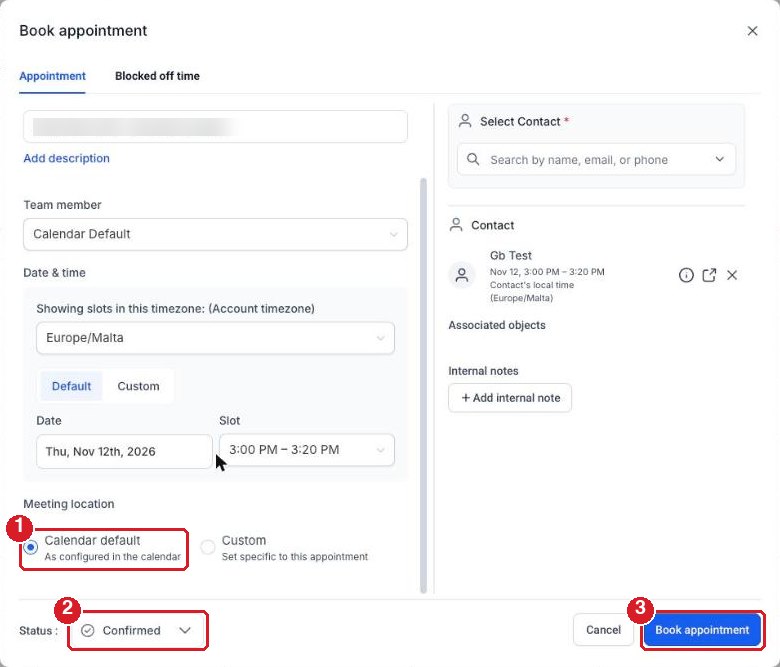
- Meeting location: leave it on Calendar default
- Status: leave it on Confirmed
- Book appointment
Done. The call is in your calendar with its video link.
5Move or cancel it
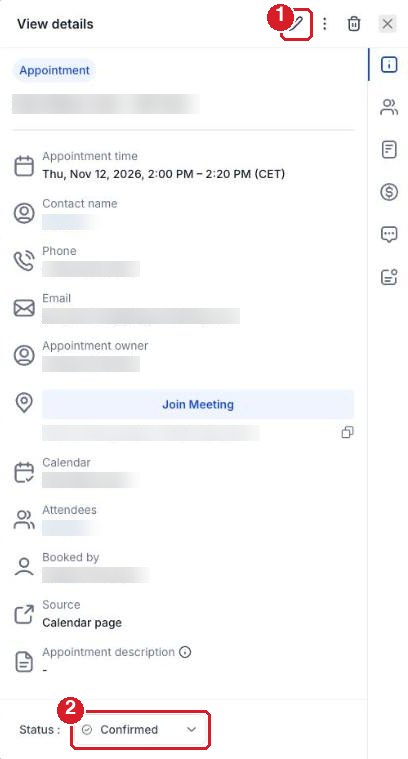
Later on, click the call in your calendar.
- To change the time: the pencil
- To cancel: Status, then Cancelled
Stuck? Reply STUCK to our email with a screenshot of the whole window.